
To play chess against a computer on ChessStep, open the board and move a white piece. You can play without an account or a clock. Before starting, you can also choose Maia or Stockfish, a difficulty, and your color. Sign in if you want to save the game to your account.
If you already know the rules, start a computer game. This guide is for the next questions: which opponent should you choose, what does its difficulty mean, and how can you learn something from a game you lose?
Key takeaways
- Start with a level that lets you explain some of your decisions, then adjust between games.
- Maia predicts human-style moves; Stockfish uses an engine search. Neither label guarantees an easy opponent.
- Keep one question from the game and investigate it afterward. Winning against a bot is not a rating test.
Start with one decision, not a complicated setup
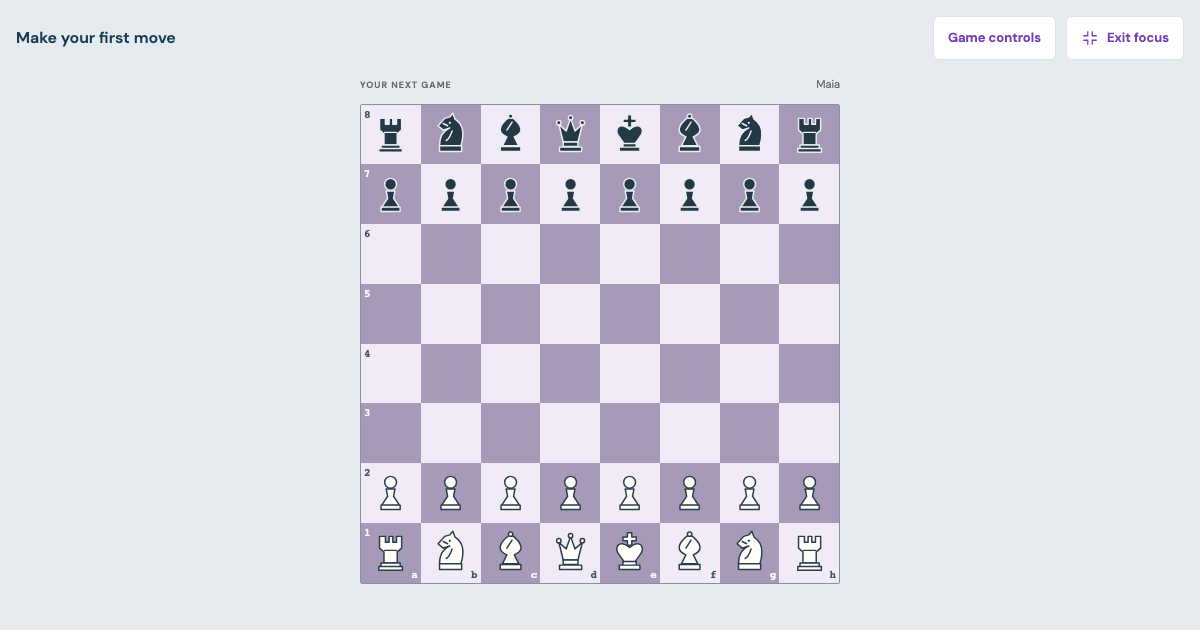
For the default game, select a white piece and then its legal destination. For a different setup, choose Opponent, Difficulty, and Your color, then select Start game. If you choose Black, the computer moves first. New players can keep the chess rules guide nearby until the piece movements and check rules feel familiar.
Once the game starts, the board automatically enters focus mode. The navigation and longer instructions disappear so the board has room. Game controls opens the settings and actions; Exit focus, or Esc on a keyboard, returns to the full page without ending the game. Selecting a different difficulty affects the next game, not the one already underway.
There is no move clock in a computer game. Take time to inspect a reply rather than trying to match the computer's response speed. If you need to leave, finish or save what you want to keep first: refreshing ends the current playable bot session. A saved replay is not a resumable bot session.
Choose Maia or Stockfish for the kind of practice you want
Maia and Stockfish choose moves differently. The Maia-3 project describes its models as predictors of human moves across skill levels. ChessStep uses Maia3 5M to sample legal moves conditioned on a reference rating. That makes it a human-style opponent, not a human coach or a simulation of a particular person.
Stockfish calculates moves through engine search. Its official command documentation describes controls for skill and search limits. ChessStep combines those controls into three settings. A low setting changes how the bot plays; it does not mean every threat will be easy to see.
| Choice | What it offers here | What to keep in mind |
|---|---|---|
| Maia | Human-style move prediction at three reference levels. | The reference number is not independently measured playing strength on this site. |
| Stockfish | Engine play at three fixed skill/search settings. | Even Beginner can find tactics a new player misses. |
| Either opponent | An untimed game followed by replay or review. | A result against a bot does not establish your rating against people. |
Maia runs on ChessStep's server, so your browser does not download its model. It needs a network connection and an idle server may take time to wake up. Stockfish runs in your browser after its engine files load. If Maia pauses with an error, open Game controls and use Retry engine when offered. Retrying keeps the position; New game starts over.
Pick a level by the decisions you can make
Beginner is a reasonable first try if you do not know what to choose. In ChessStep, Maia's Beginner, Casual, and Challenge settings use 1100, 1500, and 1900 reference ratings. These are model inputs, not promises that the bots play at those measured ratings. The Stockfish settings are also not calibrated Elo ratings.
Use a practical question after the game: could I understand the threat and choose between plausible moves, or was I guessing almost every turn? If you were mostly guessing, stay at Beginner and narrow the task. Work on keeping pieces defended or recognizing checks. If you can repeatedly explain your plans and the replies, try the next setting in a new game.
Do not raise the level just because you won once or lower it solely because you lost. A single game might turn on one missed capture. Our guide to measuring chess progress separates repeated-position recall, new decisions, and results.
If a full starting-position game feels overwhelming, a smaller position can make the task clearer. Try endgame practice, where you begin with fewer pieces and a specific finishing problem.
Give the game one concrete purpose
“Play better” is hard to act on at the board. “After every opponent move, look for a check or an attacked piece” gives you something you can actually do.
For a first session, choose one cue:
- Before moving a defender, name the piece or square it will stop protecting.
- Before making a capture, look for the opponent's forcing reply.
- After a pawn move near either king, trace any diagonal it opened.
These are practice suggestions, not a proven training schedule. Keep the cue narrow enough that you can tell afterward whether you used it. The loose-piece guide has a worked knight-and-queen example if checking attacks is your immediate problem.
You do not need to turn every move into a long calculation. Start by noticing the opponent's most direct threat. In the next session, add another part of the check only if the first is becoming usable.
Save the game before leaving if you want a replay
Playing as a guest does not create a permanent bot-game history. To keep a game in ChessStep, open Game controls, choose Save game, and sign in if prompted. The sign-in link opens another tab: keep the game tab open, then return and choose Save game again. Wait for the saved confirmation rather than assuming that opening the sign-in page saved anything.
Signed-in games can be stored in your account and reopened from the practice game history in My notebook. If synchronization fails, the page reports it; retry before relying on another device to have the game. You can also download the PGN before leaving. The PGN guide explains how to bring that file back for review.
A guest bot game and guest saved-position exercises have different rules. Signing in can merge your local learning records, but it cannot recover a bot game you closed before saving or downloading it.
Review one decision after the result
When the game ends, choose a move you remember finding difficult. Before opening engine analysis, state the reply you expected. Then use Review this game and compare that expectation with what the board permits.
A useful finding might be: “My knight moved away from the square that protected my queen.” That gives you a cue for the next game. “The computer disliked my move” does not yet explain anything you can act on. Follow the one-lesson review routine if you need a structure.
ChessStep review uses Stockfish, including when you played against Maia. The opponent that generated the game and the engine that analyzes it have different jobs. Review uses a limited search budget, so inspect the continuation before calling it the only possible answer. The Stockfish FAQ explains why search limits and score interpretation matter.
Finish by choosing what to try next: repeat the decision check, revisit a saved position, or play another game at the same level. The goal of this session is a decision you understand better, not an inferred rating increase.